Want to revisit Super Mario Bros., The Legend of Zelda, Contra, and other classic Nintendo games? You don’t need to find an old Nintendo Entertainment System to play them.
With an NES emulator, you can play compatible NES games directly on an Android phone or tablet. Modern emulators also add useful features such as save states, customizable touchscreen controls, fast-forward, and controller support.
Here’s how to get started.
What Do You Need to Play NES Games on Android?
The setup is fairly simple. You’ll need:
- An Android phone or tablet
- An NES emulator
- Legally obtained backups of your NES games
- Optional Bluetooth or USB controller
NES emulation requires very little processing power compared with newer consoles, so even many older Android devices can run NES games without problems.
Step 1: Download an NES Emulator
The first thing you’ll need is an emulator.
An emulator recreates the behavior of the original Nintendo Entertainment System, allowing your Android device to run compatible NES game files.
There are several good options available.
RetroArch
RetroArch is one of the most powerful options for retro gaming on Android.
Instead of being exclusively an NES emulator, RetroArch uses downloadable modules called cores to emulate different gaming systems.
That means the same application can potentially be used for NES, SNES, Game Boy, Sega Genesis, PlayStation, and many other classic systems.
The downside is that RetroArch can be more complicated to configure than a simple standalone NES emulator.
Lemuroid
If you want something simpler, Lemuroid is another option worth considering.
It’s designed to make emulation easier for Android users and supports multiple classic gaming systems, including the NES.
This makes it a good choice for beginners who don’t want to spend much time configuring emulator settings.
Nostalgia.NES
Nostalgia.NES has long been another popular choice for playing NES games on Android.
Its features have included things such as save states, customizable virtual controls, rewind, screenshots, and external controller support.
Availability and features can change over time, so check the current listing and developer information before installing any emulator.
Whichever emulator you choose, download it from a reputable source such as Google Play or the emulator project’s official website rather than random APK download sites.
Step 2: Get Your NES Game Files
After installing your emulator, you’ll need compatible game files.
NES game backups commonly use file extensions such as:
.nes
For example:
Super Mario Bros.nes
The safest approach is to create digital backups from cartridges that you legally own.
Although ROM websites are easy to find online, downloading copyrighted Nintendo games from unauthorized sources may violate copyright law. For that reason, this guide doesn’t provide links to websites offering copyrighted NES ROMs.
Step 3: Transfer the Games to Your Android Device
Once you have your legally obtained game backups, move them to your Android phone or tablet.
It helps to create a dedicated folder such as:
NES Games
Put your NES files inside that folder so they’re easy to locate.
If you created the backup on your computer, you can transfer it using USB, cloud storage, or another file-transfer method.
Step 4: Open Your Emulator
Launch your NES emulator.
The setup process varies slightly depending on which emulator you’re using.
Some emulators automatically scan your device for compatible games. Others require you to manually select the folder containing your NES files.
Choose your NES folder and allow the emulator to scan it.
Your games should then appear in your library.
Step 5: Start Playing
Select the game you want to play.
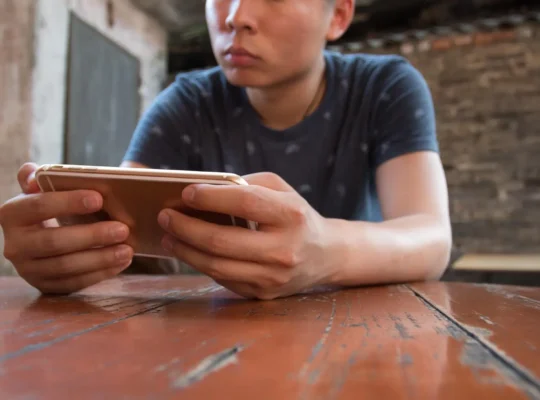
The emulator will load the game and display virtual NES controls on your touchscreen.
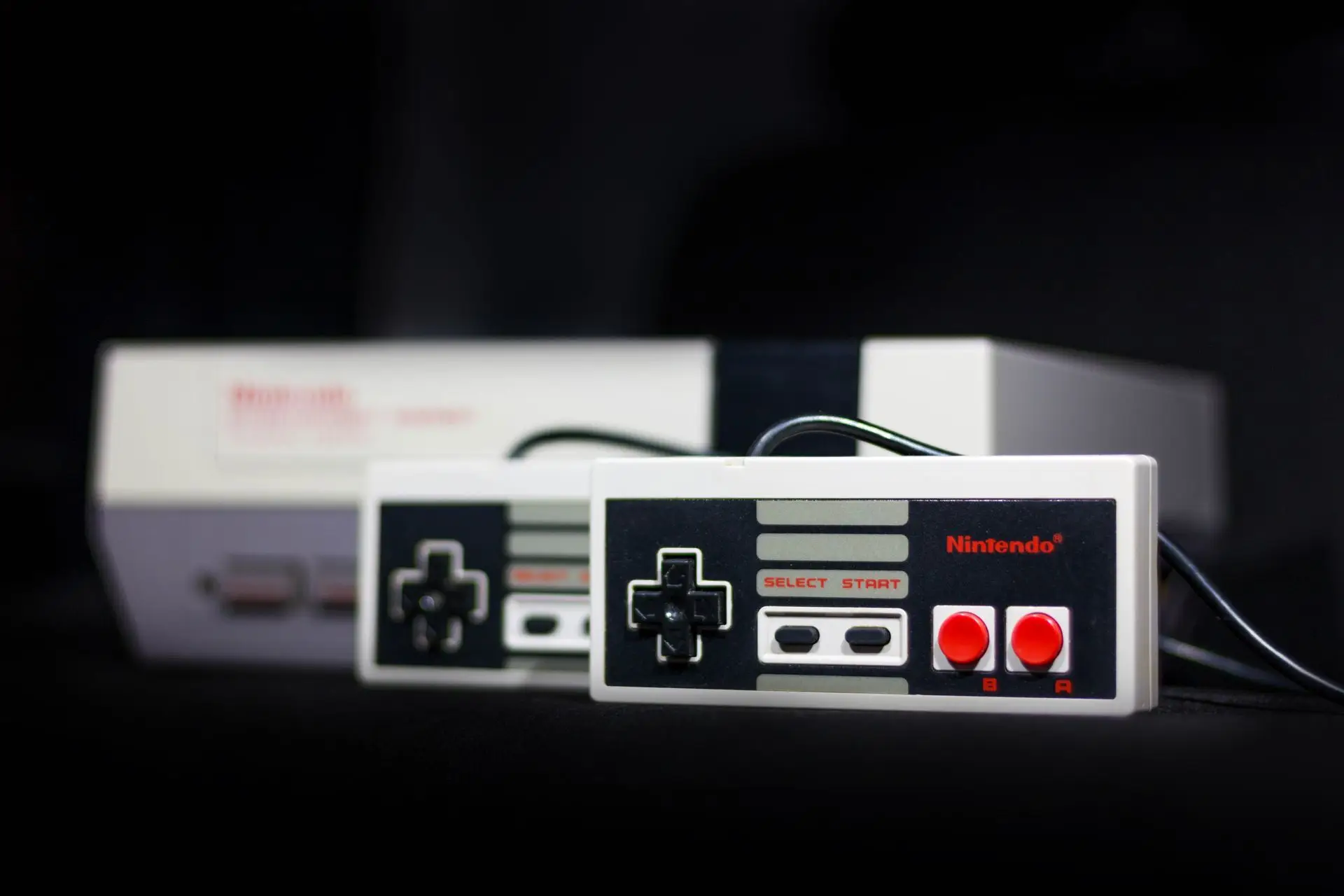
You’ll normally have buttons corresponding to the original NES controller:
- D-pad
- A
- B
- Start
- Select
Most emulators allow you to change the size, position, and transparency of these buttons.
Use Landscape Mode
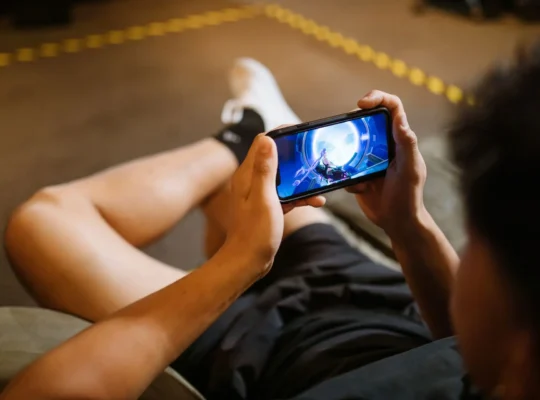
NES games were designed for television screens, so landscape mode usually provides the most natural experience on Android.
Turning your phone sideways gives the game more screen space and allows the virtual controls to sit on either side of the display.
However, portrait mode can still be useful if you prefer holding your phone vertically.
Experiment with both layouts and choose whichever feels more comfortable.
Connect a Controller
Touchscreen controls work surprisingly well for slower NES games, but they aren’t always ideal for games that require precise movement.
A Bluetooth or USB controller can make games such as Contra or Mega Man much easier to play.
Most modern Android emulators allow you to map physical controller buttons to the original NES controls.
This is probably the closest you’ll get to the original console experience on your phone.
Use Save States
One major advantage of emulation is save states.
Many original NES games either didn’t have a save system or used passwords to track progress.
Save states solve that problem.
Instead of relying on the game’s original saving system, the emulator can capture the exact state of the game.
You can then return to that exact moment later.
This is particularly useful for difficult NES games where losing all your lives could normally send you back to the beginning.
Other Useful Emulator Features
Depending on the emulator you choose, you may also have access to features that weren’t possible on the original Nintendo Entertainment System.
These can include fast-forward, rewind, screenshots, cheats, graphics filters, controller mapping, and multiple save slots.
Some emulators even let you synchronize saves between devices.
You don’t need these features to enjoy NES games, but they can make older games much more convenient on a smartphone.
Best NES Games to Play on Android
The NES has one of the most recognizable libraries in gaming history. If you’re looking for something to play, classics include:
- Super Mario Bros.
- Super Mario Bros. 2
- Super Mario Bros. 3
- The Legend of Zelda
- Zelda II: The Adventure of Link
- Contra
- Castlevania
- Mega Man 2
- Metroid
- Kirby’s Adventure
- Punch-Out!!
- Final Fantasy
- DuckTales
- Ninja Gaiden
These games are also relatively easy for modern Android devices to emulate.
Can You Play NES Games on Android Without an Internet Connection?
Yes.
Once you’ve installed your emulator and transferred your legally obtained game files to your device, most NES emulators can run games completely offline.
You generally don’t need an active internet connection while playing.
That’s one reason retro emulation can be useful when traveling or when you don’t have reliable mobile data.
Why Is My NES Emulator Lagging?
NES emulation is lightweight, so performance problems are uncommon on modern Android phones.
If games are running slowly, try closing other applications, disabling battery-saving features, restarting your phone, or checking your emulator settings.
You should also make sure you’re using a current version of your emulator.
If you’re using heavy graphics filters or enhancements, disabling them may improve performance on an older device.
Frequently Asked Questions
What is the best NES emulator for Android?
There isn’t one emulator that’s best for everyone. Lemuroid is a good option for beginners, while RetroArch offers considerably more customization and support for many different retro systems.
Standalone NES emulators such as Nostalgia.NES can also be convenient if you only want to emulate Nintendo Entertainment System games.
Are NES emulators legal?
Emulator software itself is generally legal. Copyright issues usually concern how copyrighted game files and system software are obtained and distributed.
The safest option is to use game backups that you’ve created from games you legally own.
What file format do NES games use?
NES ROM files commonly use the .nes extension.
Can I play NES games offline?
Yes. Once your emulator and games are stored on your Android device, an internet connection generally isn’t required to play.
Can I use cheats?
Some NES emulators support cheat codes. The exact options depend on which emulator you’re using.
Can I connect an NES-style controller to Android?
Yes. Many modern Bluetooth and USB game controllers work with Android, including controllers designed with layouts similar to classic Nintendo controllers.
Final Thoughts
Learning how to play NES games on Android is fairly simple. Install a reputable NES emulator, transfer legally obtained backups of your games, configure your controls, and start playing.
For beginners, an emulator such as Lemuroid provides a straightforward way to get started. If you want more advanced settings or plan to emulate several retro consoles, RetroArch provides much more flexibility.
Whichever option you choose, features such as save states, customizable controls, landscape mode, and external controller support make Android a convenient way to revisit classic NES games.
And unlike the original article, I’d remove the CoolROM and ROM-download recommendations entirely. I’d also remove Super Mario World and Street Fighter III from the game list because neither is an NES title.