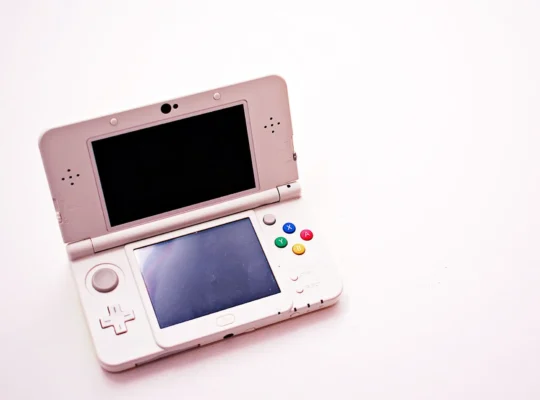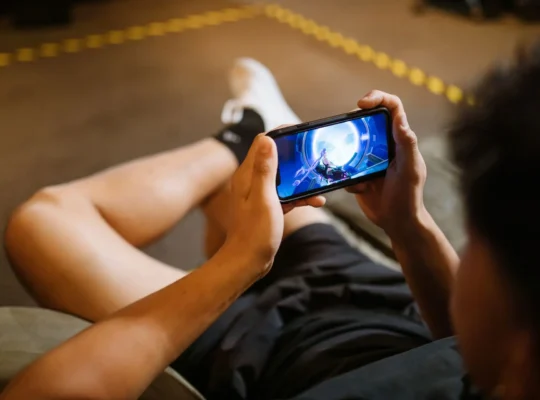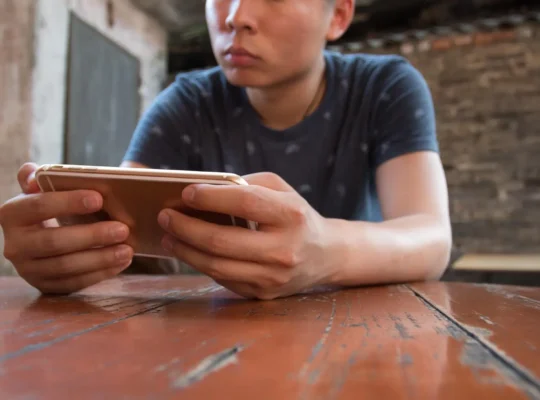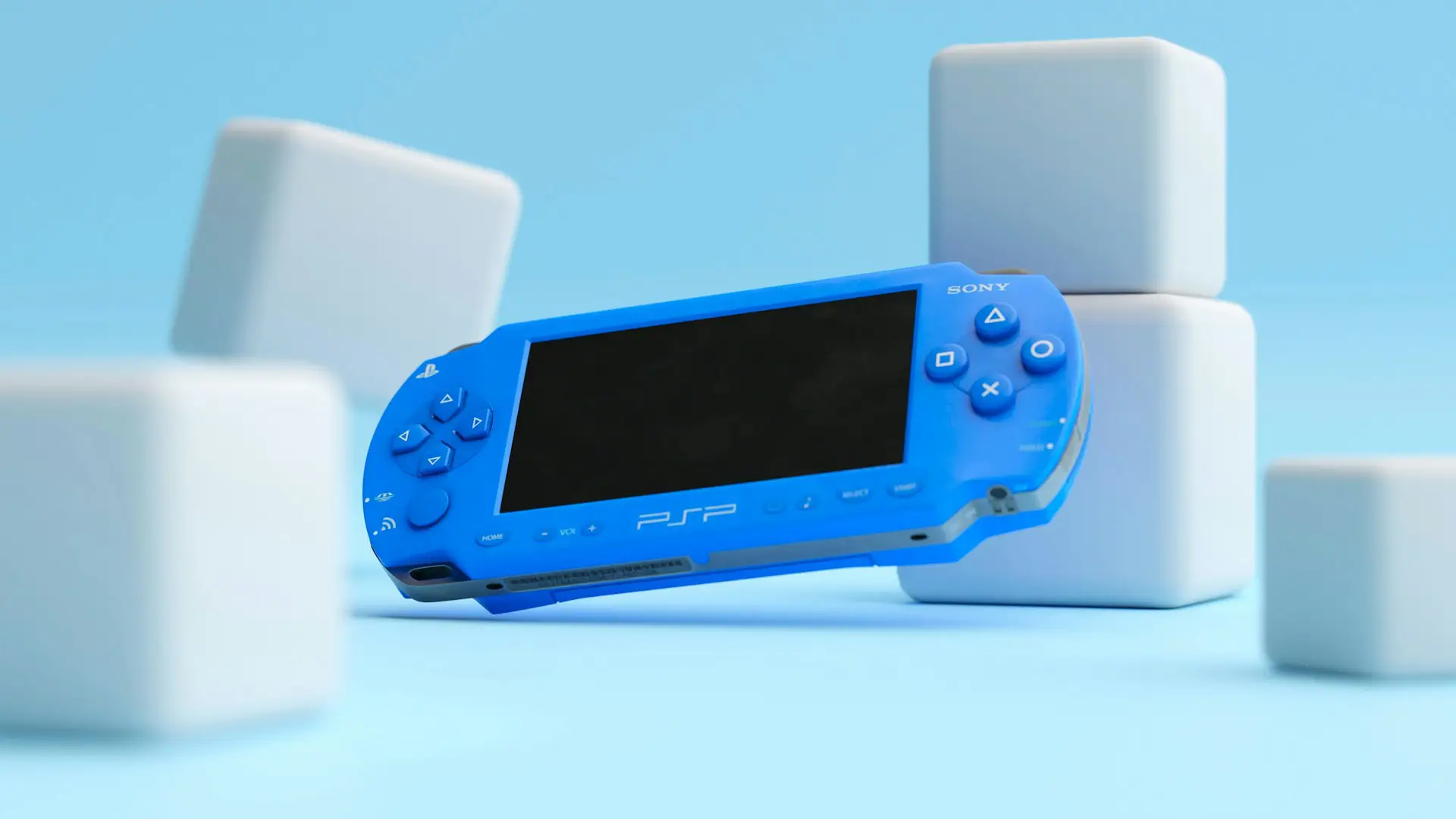
The PlayStation Portable (PSP) remains one of Sony’s most beloved handheld consoles, with classics like God of War: Ghost of Sparta, Metal Gear Solid: Peace Walker, Persona 3 Portable, and Tekken 6 still worth playing today.
Thanks to modern Android devices, you can enjoy many of these games using a PSP emulator. The process is simple and only takes a few minutes.
In this guide, we’ll show you how to play PSP games on your Android phone.
What You’ll Need
Before getting started, make sure you have:
- An Android phone or tablet
- A PSP emulator
- A legally owned PSP game backup in ISO or CSO format
- Enough storage space for your games
Most PSP games range from a few hundred megabytes to over 2 GB, so having extra storage is recommended.
Step 1: Install a PSP Emulator
The most popular PSP emulator for Android is PPSSPP.
PPSSPP is free to download and offers excellent compatibility with thousands of PSP games. There’s also a paid version called PPSSPP Gold, which includes the same features while supporting the developer.
Some of PPSSPP’s best features include:
- High-definition rendering
- Save and load states
- Customizable touch controls
- Support for Bluetooth and USB controllers
- Graphics enhancements
- Fast-forward option
- External storage support
Simply install PPSSPP from the Google Play Store and launch the app once the installation is complete.
Insert screenshot here.
Step 2: Add Your PSP Games
PPSSPP does not include games.
You’ll need your own PSP game backups in ISO or CSO format.
After transferring your game files to your Android device:
- Open PPSSPP.
- Browse to the folder containing your games.
- Tap the game you want to play.
That’s it! Your game should launch automatically.
Insert screenshot here.
Best PSP Games to Play on Android
If you’re looking for games to try, here are some of the best PSP titles that run well on PPSSPP:
- God of War: Ghost of Sparta
- God of War: Chains of Olympus
- Metal Gear Solid: Peace Walker
- Persona 3 Portable
- Crisis Core: Final Fantasy VII
- Tekken 6
- Patapon 3
- Monster Hunter Freedom Unite
- Grand Theft Auto: Liberty City Stories
- Lumines
Many of these games support enhanced graphics when played through PPSSPP on modern Android devices.
Improve Performance
If your game runs slowly, try these tips:
- Enable Frame Skipping if necessary.
- Lower the rendering resolution.
- Close background apps before playing.
- Use Vulkan or OpenGL, depending on which performs better on your device.
- Keep PPSSPP updated to the latest version.
Most mid-range and flagship Android phones released in recent years can run the majority of PSP games smoothly.
Can You Use a Controller?
Yes.
PPSSPP supports many Bluetooth and USB controllers, allowing you to enjoy a more console-like experience.
Popular compatible controllers include:
- Xbox Wireless Controller
- PlayStation DualSense
- PlayStation DualShock 4
- Various Android-compatible Bluetooth controllers
You can customize every button in PPSSPP’s settings.
Frequently Asked Questions
Is PPSSPP free?
Yes. PPSSPP is free to download and use. There’s also a paid PPSSPP Gold version that supports the developer but offers the same core features.
Can I play every PSP game?
PPSSPP is compatible with most PSP games, but compatibility and performance may vary depending on your Android device and the specific game.
Do I need an internet connection?
No. Once PPSSPP and your game files are installed, you can play offline.
Can I use cheats and save states?
Yes. PPSSPP supports save states and, for supported games, cheat codes.
Final Thoughts
Playing PSP games on Android has never been easier. With PPSSPP and a legally owned backup of your favorite PSP games, you can relive classic titles with improved graphics, customizable controls, and support for modern Android devices.
Whether you’re revisiting God of War: Ghost of Sparta, Persona 3 Portable, or Metal Gear Solid: Peace Walker, PPSSPP remains one of the best ways to experience the PSP library on the go.